Annotation is one of most distinctive features of picture book as an image organizer. By default every image node in the list has one annotation which is its name. This annotation can be edited but it cannot be deleted. The annotation feature provides ways to add comments to images for easy management. Annotations can be added, removed, edited and searched by using the properties panel and the edit menu. The properties panel can be displayed by clicking on the properties tab on the side panel. (See Figure 16) This panel can also be undocked by clicking the
properties window button on the tool bar.
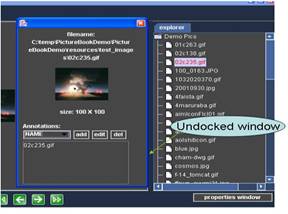
Figure 16
|
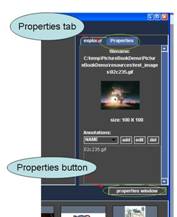
Figure 17 |
To add an annotation press the
add button in the property panel. (See figure 18) An option panel will then appear to prompt for the name and the contents of the annotation. Once the information is entered correctly press
Add to add the annotation.
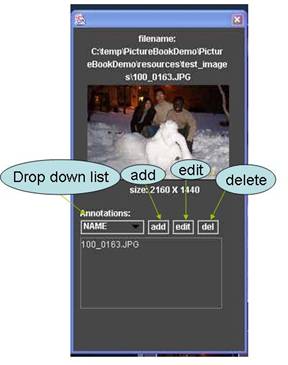
Figure 18 |
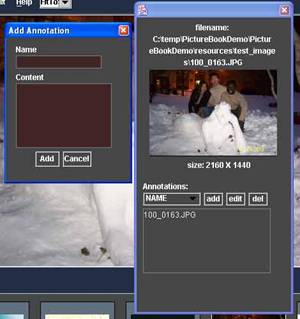
Figure 19 |
Before editing the annotation choose the correct annotation in the small drop down list as shown above. After choosing the correct annotation, press the edit button to bring up an option panel to edit the contents of the specific annotation. (See Figure below)

Figure 20
Deleting annotations is a fairly easy task. Choose the correct annotation in the drop down list and press the delete button in order to remove an annotation form the selected picture. (See figure 18)
Every picture node is searchable by its annotation(s). Since the name of the file is included as one of the annotations searching by name is also made possible by this feature. To search for an image node, select the search option in the edit menu. An option panel will then appear with an empty field. Type the string for query and press ok. The search results will be place in a new collection named search results. (See detailed illustration below)

Figure 21 |

Figure 22 |
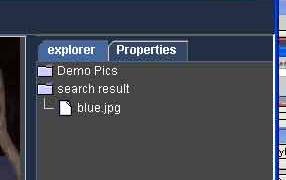
Figure 23
|